





62BF074B464247159B0D09CC6BCAF6EA.jpg)
.jpg)
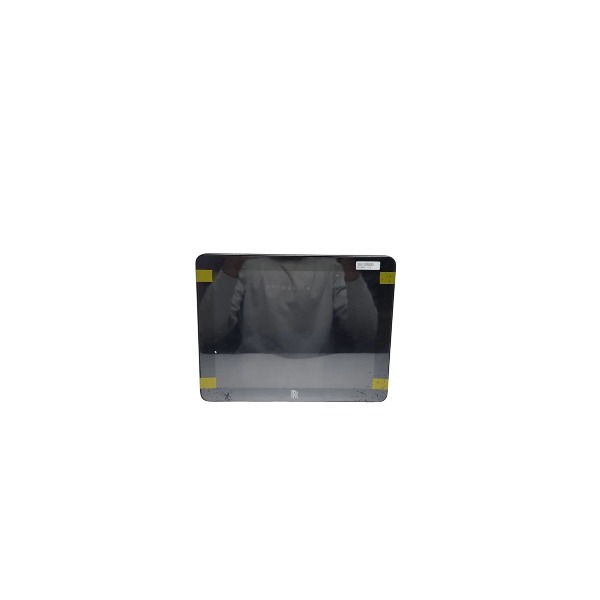







Description
-
BrandROLLS-ROYCE
-
ModelMPCF1-10.4
-
Product Name10.4‑inch Maritime Panel Computer
-
Place of OriginNorway
-
Customs HS Code85381000
-
Power Supply24 V DC
-
Dimensions285 mm × 220 mm × 75 mm
-
Weight4.8 kg
-
Operating Temperature‑10℃ to +55℃
-
Storage Temperature‑40℃ to +70℃
-
Warranty12 month
-
Product Statusoriginal
How to Reset the MPCF1-10.4
Note: The Rolls-Royce MPCF1-10.4 marine HMI is not equipped with a physical reset button. Three reset options are provided: soft reset via power cycle, partial reset through the rear service hatch, and complete factory-level system image restoration. Please back up all customized network and application parameters before performing any reset operation.
1. Soft Reset / Power Cycle (applied for system freeze, communication disturbance and temporary crash)
1.1 Access the corresponding cabinet and disconnect the 24 VDC power supply of the MPCF1-10.4.
1.2 Maintain power-off status for at least 2-3 minutes to ensure full internal electrical discharge.
1.3Restore 24 VDC power supply. The HMI will automatically execute cold boot.
This operation only clears temporary runtime cache. User configurations and system files will be retained.

2. Partial Reset via Rear Service Hatch (applied for boot-up stuck and poor SD-card contact)
Only the rear service hatch allows on-site maintenance. The main equipment housing must NOT be opened.
2.1 Cut off the 24 VDC power supply.
2.2 Unlock and open the rear service hatch.
2.3 Pull out the original Rolls-Royce boot SD-card and re-seat it firmly in its slot.
2.4Close and lock the service hatch, then restore power.
This step re-initializes the system boot medium, while existing configuration data remains intact.
3. Full Factory / System Restore (applied for serious file corruption and irreversible system faults)
Warning: This operation will erase all customized HMI parameters including IP address, touch calibration and application configuration. The official backup system image is required.
3.1Power off the unit and open the rear service hatch.
3.2Remove the exclusive original boot SD-card.
3. 3Write the official Rolls-Royce MPCF1-10.4 backup system image to the SD-card by PC. Third-party SD-cards are forbidden.
3.4 Insert the SD-card with system image back into HMI and close the service hatch.
3.5Switch on power to finish full-scale system restoration.
3.6 Re-configure all site-related parameters: IP address, subnet mask, gateway, touch calibration and communication parameters compatible with Helicon-X3 thruster / DP controller.
4. Touch Calibration Reset
4.1 Log in with maintenance-level authority and enter the HMI system service menu.
4.2 Select the touch calibration function and complete calibration following on-screen guidance.
4.Save changes and reboot HMI for new settings to take effect.

Rolls-Royce MPCF1-10.4 Common Faults and Solutions
Note: The MPCF1-10.4 is a fan-less marine panel-mount HMI. It is applied for monitoring Helicon X3 thruster and DP systems with 24 VDC power supply.
No power, totally black screen with no LED indicator
Probable cause: Loss of 24 VDC supply, loose wiring terminals, over-voltage or under-voltage, damage of internal power module. Solution: -Check 24 VDC input voltage (operating range: 18-32 VDC). -Examine power terminals for loose connection or corrosion. -Carry out power cycle. If the fault remains, cotact Rolls-Royce service to inspect the internal power unit.
Power LED is on, while screen stays black and backlight is off
Probable cause: Excessively high internal cabinet temperature, aging backlight, defective boot SD-card, display hardware failure. Solution: -Check cabinet ambient temperature (operating range: -20℃ ~ +55℃). Install auxiliary cooling devices if cabinet temperature is too high. -Open the rear service hatch, reseat the boot SD-card and restart the unit. -Replace the display module if the backlight still cannot work normally.
Touch screen no response or inaccurate touch operation
Probable cause: Marine humid environment, salt-fog pollution, touch parameter drift, mechanical stress on screen bezel. Solution: -Wipe screen surface with soft anti-static cloth to clear salt deposits. -Reboot HMI and complete touch calibration. -Replace the touch panel if the problem still exists.
Boot hanging, boot loop, failure to load application interface
Probable cause: Damaged boot SD-card, corrupted file system, incomplete firmware, poor SD-card contact caused by mechanical vibration. Solution: -Open rear service hatch and firmly re-install the boot SD-card. -Restore official backup system image to SD-card. -Use original Rolls-Royce dedicated SD-card only; third-party SD-cards are not allowed.
Communication failure with thruster / DP controller, red communication alarm displayed
Probable cause: Loose Ethernet cable, corroded connector, incorrect IP configuration, defective switch port, network transient disturbance. Solution: -Check RJ45 connectors for salt-fog corrosion; reseat or adopt marine-qualified network cable. -Confirm HMI IP address and subnet mask are consistent with the control system network segment. -Check connected network switch status and restart network equipment. -Verify communication status of Helicon X3 controller.
Screen flickering or intermittent screen blackout
Probable cause: Large ripple of unstable 24 VDC power supply, defective protective grounding, electromagnetic interference from adjacent high-power equipment. Solution: -Test DC power ripple value; add power filter if ripple exceeds technical requirement. -Inspect cabinet PE protective ground; marine console shall follow single-point grounding rule. -Route HMI cables separately from high-power motor cables.
Application crash, system freeze or unexpected random restart
Probable cause: Over-temperature, SD-card aging wear, firmware version mismatch with Helicon X3 controller, vibration impact on internal components under marine condition. Solution: -Remove over-heating risk and optimize cabinet ventilation performance. -Ensure firmware versions of MPCF1-10.4 and background controller are matched; perform official firmware upgrade if needed. -Review system event logs; replace SD-card once high wear-level warning occurs.



.jpg)
.jpg)