





FE75C66751554120A12677B7E8E07F42.jpg)
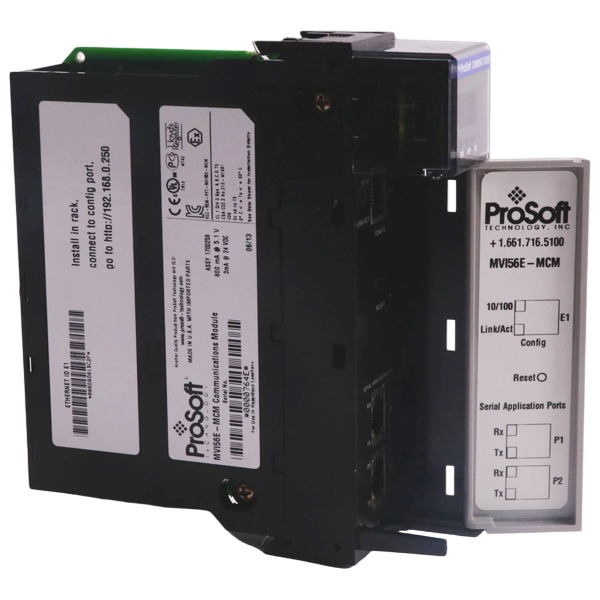







Description
-
BrandProsoft
-
ModelMVI56-104S
-
Product NameIEC 60870‑5‑104 Ethernet Server Network Interface Module for ControlLogix
-
Place of OriginUnited States
-
Customs HS Code8537101190
-
Power Supply5.1 V DC
-
Dimensions236 mm × 220 mm × 35 mm
-
Weight1.30 kg
-
Operating Temperature0 ℃ ~ +60 ℃
-
Storage Temperature‑40 ℃ ~ +85 ℃
-
Warranty12 month
-
Product Statusoriginal
ProSoft MVI56-104S Voltage, Current, Supported Protocols, Software & System
Voltage and Current
This module is fully powered by the ControlLogix 1756 backplane and does not require an independent external power supply.
Backplane supply: 5.1 VDC, current consumption: 800 mA
Backplane auxiliary 24 VDC: current consumption: 3 mA
No field-side power output for external instruments or sensors.
The RJ45 Ethernet port complies with 10/100-Base-T electrical specifications. The RS-232 configuration debug port operates at standard RS-232 signal levels and provides no external power output.
Supported Communication Protocols
Primary protocol: IEC-60870-5-104 (TCP-based telecontrol protocol, server mode only)
Backplane protocol: ControlLogix backplane data exchange protocol
Physical network: 10/100-Base-T Ethernet TCP/IP
Debug interface: RS-232 serial protocol for local configuration and diagnostics
Supported Controller Hardware System
Target platform: Rockwell Automation ControlLogix 1756 chassis, single-slot module, applicable for local rack or remote EtherNet/IP-connected rack.
Compatible hardware: All standard 1756-series ControlLogix PAC processors.
Internal module database: 4000-word user memory dedicated to IEC-60870-5-104 data mapping between SCADA client and ControlLogix controller tags.
Communication role: Operates exclusively as an IEC-60870-5-104 server, responding to read-write requests sent from remote IEC-104 SCADA client hosts.
Supported Software
RSLogix 5000 / Studio 5000 Logix Designer: Minimum version V2.51. Used for module hardware configuration, ladder logic programming for tag-data exchange between ControlLogix CPU and MVI56-104S internal database, and importing ProSoft-provided sample ladder routines.
ProSoft Configuration Builder (PCB): Primary configuration utility. Supports editing IEC-104 protocol parameters, ASDU addresses, point mapping, spontaneous/cyclic transmission modes, timestamp settings, IP parameters and IP connection filter rules. It is also used to download configuration files to the module and retrieve real-time diagnostic information.
RSLinx / RSLinx Classic: Establishes PC-to-ControlLogix communication channel, mandatory for downloading controller projects and module configurations over backplane or EtherNet/IP.
Terminal emulator (HyperTerminal, Tera Term): Optional tool for direct local access via RS-232 debug port for field troubleshooting.
Supported PC Operating Systems for Configuration Tool
Windows XP Professional SP1 / SP2
Windows 2000 Professional SP1-SP3
Windows Server 2003
Newer Windows releases (Windows 7/10/11) can execute the software with compatibility-mode settings, though these versions are not officially validated in the original manufacturer documentation.

Troubleshooting Guide for ProSoft MVI56-104S (IEC-60870-5-104 Server Module)
1. LED Indicator Fault Diagnosis
OK LED solid red: Critical module hardware fault. Inspect backplane contact condition; perform chassis power cycle and reseat the module. If the fault persists, validate firmware integrity and contact ProSoft technical support.
OK LED flashing red: Configuration failure or runtime exception. Download valid configuration through ProSoft Configuration Builder (PCB), and inspect configuration syntax as well as parameter value ranges.
OK LED steady green: Module hardware and firmware are operating normally.
ETH LED off: Physical Ethernet link is down. Examine RJ45 cables, switch port status and cable integrity.
ETH LED flashing: Ethernet physical link is active, data packets are being transmitted and received.
BATT LED red: On-board backup battery low. Keep the chassis powered for 24 hours for battery recharging. Replace the battery if the indicator remains red after recharging. Low-battery condition does not affect regular module operation, yet it may result in configuration loss after prolonged power-off.
2. Backplane Communication Failure (No data exchange between MVI56-104S and ControlLogix CPU)
Ensure the physical slot number corresponds with slot parameters defined in Studio 5000 / RSLogix 5000 I/O configuration.
Confirm sample ladder logic has been imported properly; verify read-write block transfer logic is activated and executed continuously.
Check controller operating mode; RUN or Remote RUN mode is required, while Program mode suspends backplane data transmission.
Monitor module status tags within ControlLogix and check block error counter. A non-zero reading indicates abnormal backplane transfer.
If a yellow question mark appears in the RSLinx RSWho window, register the MVI56-104S EDS file inside RSLinx.
Power-cycle the rack and reseat the module; check 5.1 VDC backplane power load status.
3. IEC-104 Client Fails to Establish TCP Connection with MVI56-104S
Use the ping utility from a PC to verify IP connectivity. Confirm the module and SCADA client belong to the same subnet with correct gateway settings.
Make sure TCP port 2404 is not blocked by firewalls, industrial-switch ACL or network security policies.
Validate static-IP settings in PCB; avoid unintended DHCP activation on fixed industrial networks.
Review the maximum permitted client connection count; new connection requests will be rejected once the limit is reached.
Check the IP-filter table in PCB configuration to ensure the client IP address is not blocked.
Reboot the module to clear stale TCP sessions.
4. TCP Connection Established, While No IEC-104 Data Is Transmitted
Confirm the remote IEC-104 SCADA client sends the STARTDT activation frame and receives positive response from MVI56-104S. Data reporting will not start before STARTDT handshake completes.
Ensure ASDU address, common address and information-object addresses are identical in both module configuration and SCADA-client settings.
Inspect point-mapping table in PCB, including database offset, data type and Cause-of-Transmission (COT) parameters.
Validate that ControlLogix ladder logic writes real-time process data into the MVI56-104S internal database; observe live database values via PCB Data Analyzer.
Check the spontaneous-report enable flag. If spontaneous transmission is disabled, data can only be retrieved through client general interrogation.
5. Abnormal, Offset or Random-Fluctuating Data Values
Verify word-order and byte-order settings match requirements from the SCADA client.
Confirm mapping offsets do not cause overlapping among different signal points.
Observe backplane block error counter; frequent backplane errors may trigger data corruption.
Check ladder logic for accidental over-write of module database memory area.
Validate scaling parameters for analog measurement points.
6. Intermittent IEC-104 Connection Drop-outs
Check Ethernet cable quality; deploy shielded industrial Cat5e / Cat6 cables. Monitor switch-port CRC errors and collision counters.
Tune IEC-104 timeout parameters T0, T1, T2 and T3 according to actual network round-trip latency.
Suppress excessive burst spontaneous events under heavy disturbance scenarios.
Check for network storms and broadcast flooding within local LAN segments.
Enable built-in PCB diagnostic counters to record connection-loss occurrences and corresponding error sources.
7. Configuration Download Failure to MVI56-104S
Available download channels: ControlLogix backplane via RSLinx, or local RS-232 debug serial port.
Ensure PCB firmware profile matches the actual module firmware version; version mismatch will reject configuration downloading.
Close other software occupying the serial COM port when downloading through debug port.
Check configuration for out-of-range parameters; PCB will display specific error descriptions.
8. General Fault-Clearing Procedure
Record all diagnostic counters, error codes and LED status prior to performing any reset operation.
Back up the current PCB configuration file locally.
Perform cold restart: cut off chassis power for at least 30 seconds, then restore power supply.
If the fault persists, restore factory-default settings and download a minimal test configuration for isolated troubleshooting.
When hardware defect is suspected, collect firmware version and error logs, then submit a support ticket to ProSoft Technology.

MVI56E-MCM
MVI46-MCM
RLX2-IHNF
PTQ-PDPS
RLX2-IFH24E
PLX51-HART-4I
6104-WA-PDPM
MVI94-MCM
MVI56E-SIE


.jpg)